

Organizing photos in Lightroom comes down to two layers: a simple folder structure on your hard drive for the actual image files, and a set of virtual tools inside Lightroom (collections, smart collections, ratings, flags, color labels, and keywords) that reference those files without moving or duplicating them. Almost every mess I’ve seen in a Lightroom catalog comes from leaning hard on one layer and skipping the other.
The workflow below is a seven-step loop you can run on every shoot. It takes about two minutes per hundred photos once the import settings are saved, and it works whether you shoot a wedding, a listing, or a birthday party.
Paths and menu names below are for Lightroom Classic on macOS and Windows. Cloud Lightroom uses different words for some of these (albums instead of collections, for instance), so I’ve flagged where the two diverge.
Last updated: October 2026. Tested on Lightroom Classic 14.x and the current release of cloud Lightroom.
Table of Contents
- What You Need
- Step-by-Step
- Common Mistakes
- Frequently Asked Questions
- What is the difference between folders and collections in Lightroom?
- What is the best way to organize thousands of photos?
- How do I arrange photos chronologically in Lightroom?
- How can I sort photos in Lightroom Classic?
- Do Lightroom collections move or copy my files?
- How do I back up my Lightroom catalog and originals?
- Conclusion
What You Need

Before touching the Import button, get four things in place: the Lightroom application, your original image files, storage with room to spare, and a second place to send everything. People skip the fourth one and regret it later.
- Lightroom Classic for a local catalog that lives on your own drive, or cloud Lightroom if you want your library synced to phones and other computers.
- Your originals still on the memory card or already copied off it. Importing does not erase a card, but clearing one does.
- Working storage for the catalog, previews, and the files Lightroom copies during import.
- A backup target, ideally a different physical drive from the one running the catalog.
- Thirty quiet minutes the first time to build the structure and set up import presets.
Here is the vocabulary the rest of the guide depends on. The catalog is the database index that knows where every file lives; it is not the photos themselves. A collection is a virtual set of references inside the catalog. A smart collection is a collection that builds itself from rules you write once. An album is the cloud Lightroom equivalent of a collection.
This matters more than it sounds. Because collections are references, dragging a photo into one changes nothing on your drive. That single fact is the source of most of the fear people have about reorganizing, and it is why the on-drive folder layer has to stay simple.
| Organizing tool | Where files live | Nesting | Fills itself | Available in |
|---|---|---|---|---|
| Folders | Files move here on disk | Physical, as deep as you like | No | Both, as source locations |
| Collections | Files stay exactly where they are | Yes, inside collections in the panel | No | Lightroom Classic |
| Smart collections | Files stay where they are | Yes | Yes, as you rate and import | Lightroom Classic |
| Albums | Files stay where they are | Yes | No | Cloud Lightroom |
The short version: folders decide where bytes live, everything else decides how you see them.
Step-by-Step
1. Set Up a Consistent Folder Structure
Keep the drive layer shallow and boring. A year folder, a shoot folder inside it, and nothing deeper is enough. My own scheme is YYYY/YYYY_MM_DD_ShootName, which keeps the sort order correct on disk instead of relying on memory later.
One r/Lightroom user described running a single master drive folder with a subfolder per month named like 2026/2026_05, one decade at a time. Others use a Year | Shoot Name | Catalog | Source | Export layout that keeps catalog files separate from source images. Both work; the thing they have in common is that the structure never changes shape between projects.
Three rules keep this from turning into a mess:
- Never nest by client name, mood, or anything else that might change later. Metadata belongs in the catalog, where you can edit it.
- Keep the Lightroom catalog (.lrcat file) in its own folder that you never reorganize by hand. Backups are written there automatically.
- Decide now whether Lightroom copies files in (managed) or only points at them (referenced). Mixed thinking here causes missing-photo problems later.
How you’ll know it worked: open the Import dialog and your destination folder should already be one you created, with a predictable name.
2. Import Photos Into One Lightroom Catalog
Open the Import dialog with the drive and source folder selected, then work down the left column. For most people the right settings are: copy files to a new location, create new folders by date as YYYY/MM/DD, build a preview without embedding, and ignore duplicate sidecar files.
To rename on import, click the Apply During Import button at the bottom of the right panel and set a custom name. A readable convention looks like YYYYMMDD_ShootName_Seq, using the text, date, or sequence number tokens rather than typing the date by hand.
Duplicates are worth handling at import rather than later. In Lightroom Classic, use Menu > Show Duplicate Photos after the import finishes and let the built-in view group candidates by filename, size, and capture date. Decide once how you handle them, or the grid stays noisy forever.
On catalog sprawl: one catalog is fine until it isn’t. If you shoot a lot, a few larger catalogs split by year are easier to manage than dozens of small ones that all have to be opened, backed up, and merged. The painful version is twenty-two catalogs named after individual shoots.
3. Do a Quick Culling and Rating Pass
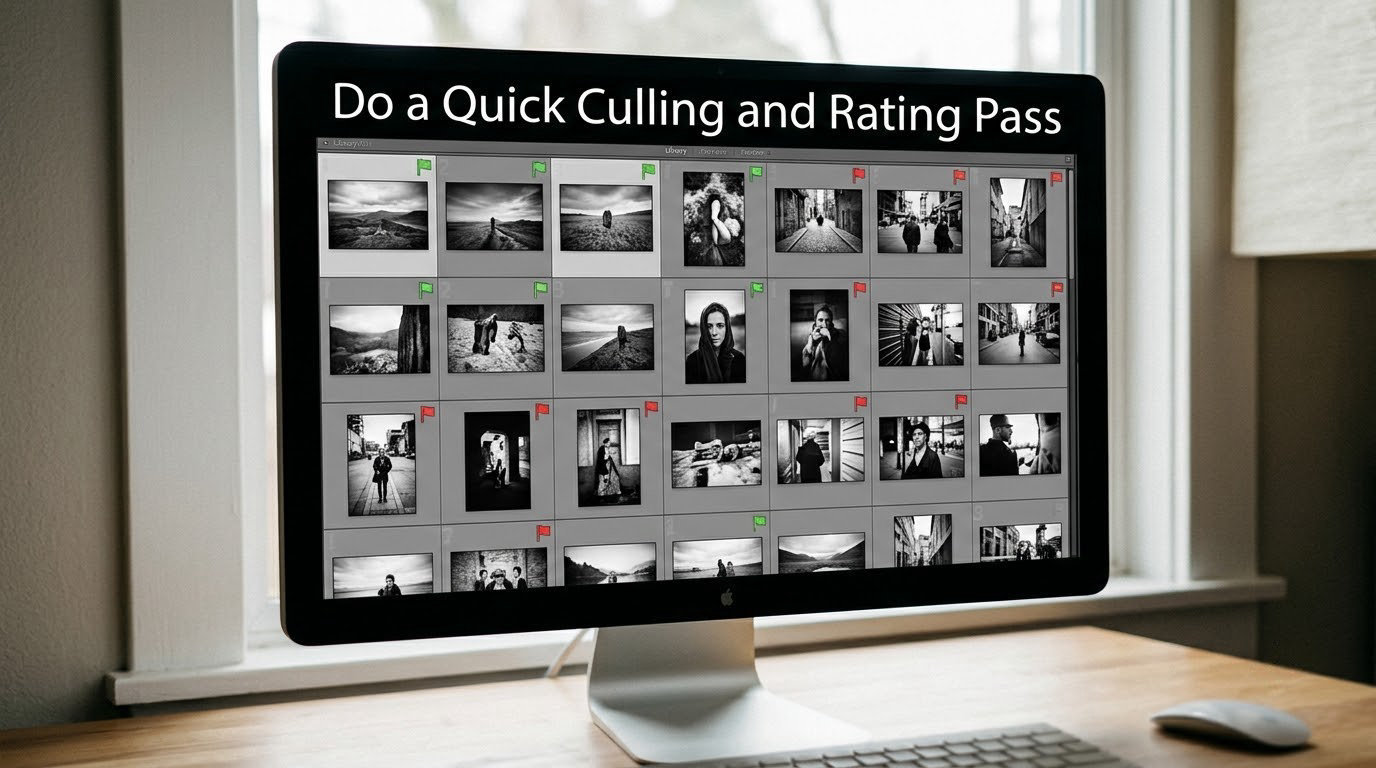
Switch the grid to the icon view, zoom until you can judge a frame, and start sorting with the keyboard: P flags a keeper, U unflags it, and X rejects. Then hold down the arrow keys. Numbers 1 through 5 set star ratings, and 6 clears both the stars and the flags.
Stars, flags, and color labels are three different tools and mixing them up is what makes a cull hard to read later.
- Flags are binary and temporary. Use them while you cull, then clear them. A frame flagged and an unflagged frame are otherwise identical.
- Stars are your durable ranking: five stars is the keeper, one star is the maybe, no stars means unlooked-at.
- Color labels are categories, not quality. Set them up once in Edit > Preferences > Color labels on Windows, or Lightroom > Preferences > Color labels on macOS, then pick a meaning that fits your work: red for client selects, yellow for to export, green for printed, blue for personal.
Resist the urge to open the Develop module mid-cull. Sorting first means you edit only the frames you chose, and the boring near-misses never cost you a morning.
4. Add Keywords and Important Metadata
Ratings tell you how good something is; keywords tell you what it is. Captions, location, and keywords are what make a six-year-old shoot findable when you remember the shot but not the month.
Apply keywords during import rather than after. In the right panel of the Import dialog, choose your keyword set from the Apply Metadata menu. For the rest, open the Metadata panel in the Library module, select a group of similar frames, and type the keyword once to hit all of them.
Use a controlled vocabulary. If you shoot real estate, decide up front that it is “residential interior” and never “indoor home,” “house inside,” or “home interior.” You will not remember which variant you used on the frame you need, and the search will return half the answer.
Worth capturing in the same pass: the caption or title, the city or venue, and the project or client name in the IPTC fields. Those are the fields other software reads when you export or hand files to someone else.
5. Build Collections for Different Workflows
Collections are your filing cabinet. Create one per shoot, give it a name you’ll recognize in a list of two hundred, and drag in the frames you care about. Collections can contain collections in the panel, so a season folder can hold every wedding from that year without moving a single file on disk.
Smart collections are the part most guides skip. Open the panel, click the plus icon, and write rules once: Rating is greater than or equal to 4, plus Flagged is flagged, plus Capture Date is in the current year. Photos you import and rate tomorrow land in it automatically, with no dragging at all. A second set built on Keyword contains is a client selects album that updates itself.
For handing selects to a retoucher, the community pattern is simple: drop your picks into a collection named for the job, then right-click that collection and export from it. Because the export runs from the collection, the file names follow your rename pattern and the deliverable arrives in the right order without a second sorting session.
In cloud Lightroom the same ideas are called albums, and the same rules apply: the original file stays in its synced folder and the album is a reference.
| How organization differs | Lightroom Classic | Cloud Lightroom |
|---|---|---|
| Virtual container | Collection, plus rule-based smart collections | Album; saved searches add rule-based sets |
| Where the index lives | A local .lrcat catalog on your drive | Adobe’s cloud, synced to your devices |
| File handling | You copy or reference files yourself | Files sync as originals, not just previews |
| Shared with others | Export or publish collections | Share an album by link or invitation |
| Backup responsibility | Yours: catalog and originals, both | Originals still need your own backup; metadata syncs |
Whichever version you use, collections never move or copy files. If you want files physically grouped, do that in the folder structure from step 1, not in the catalog.
6. Use Lightroom as a Non-Destructive Editing Workflow
Organization and editing are the same loop once you trust the system. Select a collection, not a folder, and your selects are the working set for the day. Open the Develop module and edit normally; the original file is never overwritten, and the adjustments live in the catalog with a sidecar XMP file next to the image.
Keep a compare habit. Build a virtual copy for a treatment you’re testing (Ctrl or Cmd plus J on Windows and Mac respectively), give it a snapshot, then step back and forth between the original and the version to judge whether the change actually helped.
Two habits pay off immediately. Sync settings to a whole collection when you’re applying one look across a shoot, and never mix file organization with editing decisions: if you’re unsure whether a frame belongs to a project, leave it rated and uncollected until you know.
7. Back Up and Maintain the Catalog
The catalog is a database, not a folder of copies. If the drive dies, you lose every rating, flag, keyword, caption, and edit you ever made. That is the most common real loss in Lightroom, and it is the easiest to prevent.
Use File > Back Up Catalog on a schedule, and raise the number of backups Lightroom keeps from the default so you have several points to roll back to. Then follow the 3-2-1 approach: three copies of your data, on two different media types, with one copy kept somewhere other than your desk.
What that looks like in practice:
- Catalog backups written to a separate drive on import, through the Back Up Catalog dialog.
- Originals on the working drive plus a mirrored copy or sync service, and periodically one cold copy you do not touch.
- A restore test once a quarter: open a backup copy of the catalog in a separate install and confirm your collections and ratings are there.
For folder health, run File > Find Missing Files occasionally. If photos show a question-mark icon, the catalog has lost its link to the file. Use the dialog to point at the relocated folder, then confirm the images are back to normal before you edit anything.
Common Mistakes
Overusing folders. Deep client-and-mood nesting on the drive is a trap, because the day the client rebrands you are renaming folders and hoping nothing breaks. Keep the disk layer to date and shoot; put everything descriptive into keywords and captions. Fix: flatten the existing tree once, then let the catalog carry the detail.
Importing the same shoot twice. Duplicates from a second card or a re-import after a crash quietly double everything. Fix: make “Show Duplicate Photos” part of your import routine, and add “ignore duplicates” to your import preset so it becomes automatic.
Relying on stars alone. Five stars tells you nothing about what the photo is. Two years later that rating is useless. Fix: keep stars for quality and use keywords, captions, and collections for identity. If you find yourself with 4,000 four-star photos and no way to narrow them, the labels are missing.
Changing keyword wording every season. “Beach,” “seaside,” and “ocean” describe the same shoot and split it three ways. Fix: write your vocabulary down in a text file, keep it short, and add to it deliberately.
Skipping catalog backups. Treating the catalog as a cache that Lightroom rebuilds on demand. It does not, and the metadata it holds cannot be regenerated from your originals. Fix: schedule the backup dialog and confirm the backup files exist.
Moving folders in the file browser. Renaming or relocating folders outside Lightroom breaks the catalog’s links. Fix: let Lightroom see the move first. On a drive with one root folder this is a non-issue, which is another argument for the shallow structure.
Building dozens of catalogs. A catalog per shoot means dozens of backups, no cross-shoot search, and manual merging later. Fix: one catalog, or a handful split by year, and keep the count low enough that you still remember what is in each one.
Frequently Asked Questions
What is the difference between folders and collections in Lightroom?
Folders hold your actual image files on disk and moving them changes where those files live. Collections are virtual: dragging a photo into one only adds a reference to the catalog, and the file stays exactly where it is. Use folders for storage and collections for anything you want to see, filter, or share.
What is the best way to organize thousands of photos?
Start clean rather than sorting the whole library at once. Pick one shoot, import it into a single catalog with a date-based folder structure, rate everything from five stars down to reject, then build one collection for the keepers and one smart collection that pulls anything rated four stars or higher. Repeat per shoot and the catalog stays navigable.
How do I arrange photos chronologically in Lightroom?
Use View u0026gt; Sort u0026gt; Capture Date in the Library module. That sorts by the date recorded in the file, not by import time. If frames appear in the wrong order, their clocks were wrong when they were shot; fix it with the Edit Date Time field in the Metadata panel or set the camera clock from your computer before the next shoot.
How can I sort photos in Lightroom Classic?
Click the Sort icon at the bottom of the Library grid and choose Capture Date, Import Date, File Name, or Rating. The field stays selected for that view, so you can switch from one sort to another without resetting it. If the order looks wrong, switch the grid to icon view and widen the thumbnails before judging the sequence.
Do Lightroom collections move or copy my files?
They do neither. A collection is a set of references stored in the catalog, so the image files never move and nothing is duplicated on your drive. The one exception is when you use the import copy, which creates files first and then references them, or when you export from a collection, which writes new files to a folder you choose.
How do I back up my Lightroom catalog and originals?
Back up both, because they fail differently. Originals need a second and third copy on different media, with one kept off-site. The catalog needs regular File u0026gt; Back Up Catalog runs written to a separate drive, with the number of kept backups raised above the default. Once a quarter, open a backup copy to confirm your ratings and collections came back.
Conclusion
A Lightroom library stays organized when two layers each do one job: a shallow year-and-shoot folder structure decides where files live, and ratings, keywords, collections, and smart collections decide how you find them. Nothing in the virtual layer touches a single byte on your drive, which is exactly why it is safe to experiment there.
Start with one action tonight. Create a YYYY folder, build your import preset with copy-and-rename plus date-based subfolders, and bring in a single shoot. Rate it, put the keepers in one collection, set up one smart collection, and run Back Up Catalog before you close the program.
Repeat that on every shoot for a month and you will have the answer to that r/Lightroom question about avoiding chaos: not a cleverer system, just the same boring one every time.